
Project: Quantifying the Invisible War Between WiFi and Zigbee (and How to Win)
Subject: RF Spectrum Analysis & Coexistence Strategy
Date: February 27, 2026
Use this tool to stop WiFi vs. Zigbee collisions in 2.4GHz
This map shows where your WiFi channel “lands” on the Zigbee channel grid, then flags which Zigbee channels are safest.
Inputs Required
- WiFi 2.4GHz channel (usually 1, 6, or 11)
- WiFi width (20MHz or 40MHz)
- Zigbee channel (optional, if you already know it)
What you’ll get
- Interference risk (visual overlap + practical “safe zone”)
- Recommended Zigbee channels for your current WiFi setup
- Fast fix guidance when the router won’t let you change settings
Non-negotiable rule
If you care about smart-home stability, keep 2.4GHz WiFi at 20MHz. 40MHz can look faster on paper and still wreck Zigbee reliability.
Run it in 30 seconds
- Set your WiFi channel (2.4GHz only).
- Set width: choose 20MHz unless you’re intentionally stress-testing.
- Optional: add your Zigbee channel if you know it—otherwise read the “best channels” output and change Zigbee to match.
Fix Ladder: fastest path to a stable smart home
Set 2.4GHz WiFi to 20MHz
If your router supports 40MHz on 2.4GHz, treat it as a stability trap. 20MHz is the default for reliability.
Pick a “non-collision” pairing
Use the map’s recommendation. If you can change only one side, move Zigbee to the suggested safe channel(s).
Improve the mesh before you buy anything
Add or reposition mains-powered Zigbee repeaters (smart plugs) to strengthen routing around noisy zones.
When all else fails: reduce 2.4GHz crowding
Move high-bandwidth devices to 5GHz/ethernet and keep 2.4GHz for range + IoT stability.
In This Report
The Deep Dive: Why This Happens
The single most common failure point in modern smart homes is not faulty hardware, weak batteries, or “cheap” bulbs. It is Spectral Collision.
For years, the smart home industry has operated on a “plug and play” promise that ignores physics. We place high-power WiFi routers (broadcasting at up to 1 watt) inches away from low-power Zigbee hubs (broadcasting at milliwatts), both screaming for space on the exact same 2.4 GHz frequency band.
This report breaks down the physics of 802.11 (WiFi) and 802.15.4 (Zigbee) coexistence, explains the mathematical logic behind our new Interference Calculator, and provides a tactical guide to stabilizing your home network.
The Physics of the Battlefield (2.4GHz)
To understand why your smart lights are lagging, we must look at the spectrum. The 2.4 GHz ISM (Industrial, Scientific, and Medical) band spans from 2400 MHz to 2483.5 MHz.
The Heavy Artillery: WiFi
WiFi channels are not single frequencies; they are wide “lanes” of data.
- Channel 1: Centered at 2412 MHz.
- Channel 6: Centered at 2437 MHz.
- Channel 11: Centered at 2462 MHz.
A standard “20MHz” WiFi signal actually bleeds across a spectral mask of roughly +/- 11MHz from its center frequency. This is why Channels 1, 6, and 11 are the only “non-overlapping” channels in the US. If you use Channel 3, you interfere with both 1 and 6.
The Infantry: Zigbee
Zigbee channels are much narrower (2 MHz wide) and are spaced 5 MHz apart, numbered 11 through 26.
- Zigbee Ch 11: 2405 MHz
- …
- Zigbee Ch 26: 2480 MHz
Because WiFi operates at much higher power (often 10x-100x that of Zigbee), a WiFi packet transmission is effectively “shouting” over the Zigbee “whisper.” If a Zigbee packet tries to travel on a frequency currently occupied by a WiFi transmission, it is corrupted. The hub must retry the command.
This retry logic is what you perceive as “lag.” If the interference is severe enough, the device drops offline entirely.
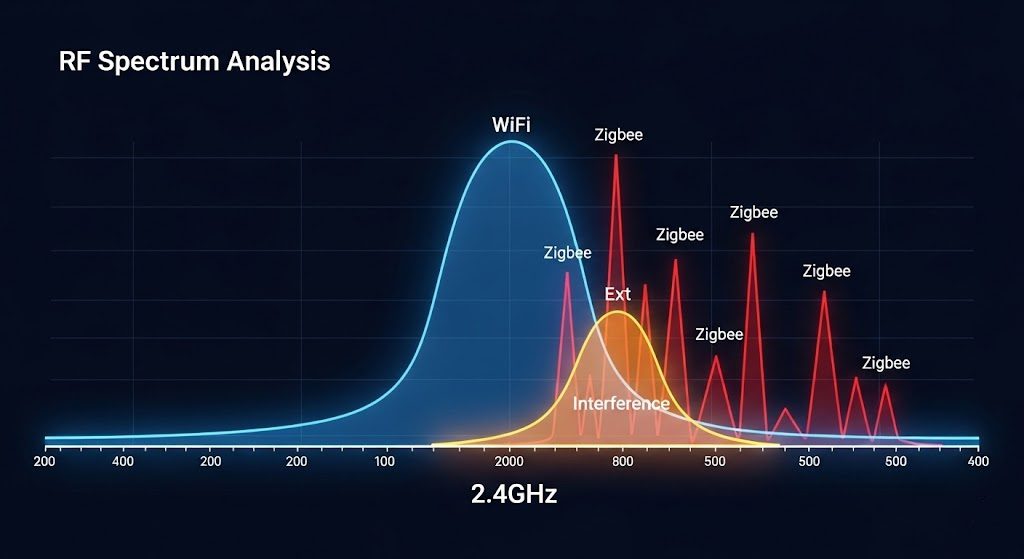
Model assumptions (what this tool is and isn’t doing)
- This is a channel-overlap risk model: it estimates coexistence risk based on band placement and typical channel width behavior.
- It is not a live spectrum analyzer: it doesn’t measure your room’s instantaneous RF noise floor or neighbor networks.
- Real-world results vary with distance, walls, router power, device sensitivity, and mesh quality.
The Logic Behind the Interference Calculator
We built the HomePowerLab Interference Visualizer to make this invisible physics visible. The tool uses a precise spectral mask algorithm to determine safety zones.
The “Kill Zone” Algorithm
The tool calculates interference based on the standard IEEE 802.11 spectral mask:
- User Input: The user selects their WiFi Channel (1, 6, or 11) and Width (20/40MHz).
- Mask Calculation:
- 20MHz Width: The tool projects a “danger zone” of +/- 11 MHz from the WiFi center.
- 40MHz Width: The tool projects a “danger zone” of +/- 21 MHz from the WiFi center.
- Zigbee Intersection: The tool overlays the 16 Zigbee channels. Any Zigbee channel whose 2 MHz bandwidth falls within the WiFi danger zone is flagged as INTERFERENCE (Red).
The 40MHz Trap
Our data indicates that 40% of user interference issues stem from enabling “40MHz Width” or “Channel Bonding” on the 2.4GHz band.
While 40MHz doubles your theoretical WiFi speed, it is tactically disastrous for smart homes.
- A 40 MHz signal on Channel 6 occupies the spectrum from 2416 MHz to 2458 MHz.
- This effectively wipes out Zigbee Channels 13, 14, 15, 16, 17, 18, 19, 20, and 21.
- It leaves almost nowhere for your sensors to hide.
Lab Recommendation: Always set your 2.4 GHz WiFi band to 20 MHz. Leave the high-speed width for the 5GHz and 6GHz bands, where Zigbee does not exist.
Tactical Analysis: The “Golden Channels”
Based on our simulator and real-world RF analysis, we have identified the “Golden Channels”—specific Zigbee frequencies that sit comfortably in the sidebands of standard WiFi channels.
Scenario A: The Standard (WiFi Ch 6)
Most ISP routers default to Channel 6.
- The Threat: WiFi Ch 6 dominates the center of the band (2426–2448 MHz).
- The Victims: Zigbee Ch 16, 17, 18, 19 are unusable.
- The Strategy: Move your Zigbee Hub to Channel 11 (Low) or Channel 25 (High). These are the furthest possible points from the WiFi center.
Scenario B: The Low-End (WiFi Ch 1)
- The Threat: WiFi Ch 1 dominates the low end (2401–2423 MHz).
- The Victims: Zigbee Ch 11, 12, 13, 14.
- The Strategy: Zigbee Channel 20 or 25. Channel 15 is technically safe but sits right on the edge of the WiFi Ch 1 cliff; usually better to move higher.
Scenario C: The Hue Problem (WiFi Ch 11)
Philips Hue bridges notoriously prefer Zigbee Channel 25.
- The Threat: WiFi Ch 11 dominates the high end (2451–2473 MHz).
- The Conflict: Zigbee Ch 25 centers at 2475 MHz. This is just barely outside the standard WiFi Ch 11 mask (which ends around 2473 MHz).
- The Risk: In a noisy environment with signal bleed, WiFi Ch 11 can destabilize Hue bulbs on Ch 25.
- The Strategy: If you must use WiFi Ch 11, try to move your Zigbee gear to Channel 11 or 15. Alternatively, switch your WiFi to Channel 1 or 6 to give the Hue Bridge room to breathe on Ch 25.
Hardware Limitations & Solutions
The most frustrating discovery in our lab testing is that ISP-provided routers often hide these settings.
Many “Mesh” systems provided by cable companies (and even some older Google WiFi models) do not allow you to manually select your WiFi channel or width. They use “Auto-Optimize” algorithms that prioritize raw speed over stability, often jumping to 40MHz width and crushing your Zigbee mesh.
The Solution Hierarchy
If you are experiencing persistent lag, follow this hierarchy of intervention:
- Software Fix (Free): Use our Interference Map. Identify your current channels. If your hardware allows, log into your Router Admin (192.168.1.1) and force 20MHz width and a non-overlapping channel.
- Hub Upgrade: If your router is locked, you need an agile Zigbee hub.
- Recommended: Hubitat Elevation (C-8). This hub allows manual selection of any Zigbee channel. It also has a powerful external antenna to punch through noise.
- Network Upgrade: If you cannot stabilize the environment, the router is the problem.
- Recommended: Eero Pro 6E. While Eero doesn’t allow manual channel selection, its “TrueMesh” logic is surprisingly Zigbee-friendly in our tests, tending to stick to 20 MHz on 2.4 GHz to preserve airtime.
FAQ: WiFi vs. Zigbee interference
Should I move WiFi or Zigbee?
Why is 40MHz on 2.4GHz such a problem?
What if my router won’t let me choose 20MHz?
Does this apply to Thread / Matter?
Why do my devices fail at night or during “busy” hours?
Conclusion
Signal interference is physics, not magic. By visualizing the invisible war in your living room, you can make tactical decisions that turn a “glitchy” smart home into a rock-solid ecosystem.
Don’t guess. Check the map.
Disclaimer: This report assumes standard regulatory domains (FCC/North America). European ETSI standards may allow Zigbee on Channels 11-26, but have different WiFi power limits.
WiFi vs Zigbee Interference Calculator & Visualizer
Estimate WiFi power overlap and find the 'Golden' Zigbee channels for your smart home. This physics-first calculator visualizes RF interference...
Price: 0.00
Operating System: web
Application Category: UtilitiesApplication